
WORDPRESS TOOLS / JMS SITEBRIDGE 0.2 BETA
Give your MCP assistant a direct connection to WordPress. JMS SiteBridge brings content, store, media and administration tools to your own site, with a native WordPress activity dashboard and an optional companion that runs on your computer.
Get SiteBridge — $19.99 one-time →
Installation · Connection setup · User guide · FAQ
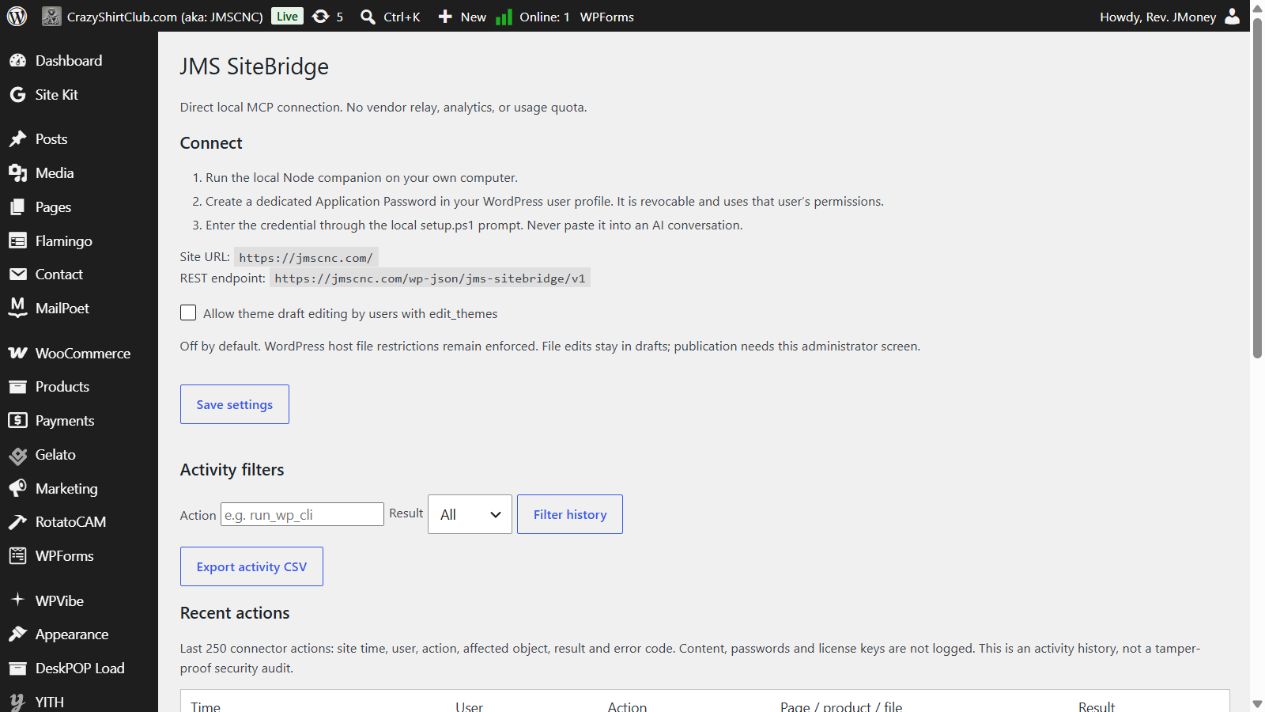
One purchase. Your site. Your connection.
$19.99 one-time. SiteBridge has no subscription, vendor account, cloud relay, telemetry or plugin usage quota. The plugin runs on your WordPress hosting; the optional companion runs locally. Your existing hosting, internet connection and compatible AI/MCP client are still required. Any charges or limits from that client or its AI provider are separate.
What you can do
- Manage content: create and update posts, pages and custom post types; work with comments, users and settings through native WordPress permissions.
- Work with WooCommerce: use the store’s registered REST API for products, categories and other authorized store tasks. WooCommerce is optional and must be installed for its tools to work.
- Handle media: import images and other supported files. Local uploads use explicitly approved folders and respect WordPress upload limits.
- Administer your site: use allowlisted WP-CLI-style commands for plugins, themes, menus, widgets, options, cron and cache. No server shell or arbitrary PHP execution is exposed.
- Review theme work: prepare classic or block-theme drafts, inspect files, preview changes and publish or roll back through WordPress approval screens. Theme editing starts disabled.
- See what happened: a dashboard widget and Tools → JMS SiteBridge show the latest 250 actions, searchable filters and CSV export, without logging content bodies or credentials.
- Use the optional local companion: add desktop MCP transport, public-page screenshots, CSS inspection, Lighthouse audits and sequential multi-site update jobs.
Installation
- Purchase here, then download the plugin ZIP and source/companion ZIP from My Account → Downloads.
- In WordPress, open Plugins → Add Plugin → Upload Plugin. Select
jms-sitebridge-wordpress-0.2.0-beta.zip, install it and activate JMS SiteBridge. - Open Tools → JMS SiteBridge for connection details and activity history.
- Create a dedicated Application Password under Users → Profile and configure your MCP client locally. Keep credentials out of chat messages.
- Start with
site_infoand verify the returned site before making changes.
Connect your assistant
Use a dedicated WordPress account with only the capabilities your assistant needs. In Users → Profile, create an Application Password and give it a recognizable name. This credential uses that account’s permissions and can be revoked independently of its normal login password. Enter it only in your local client’s credential settings.
Direct HTTP MCP
Configure a compatible client with your site’s HTTPS endpoint:
https://YOUR-SITE.example/wp-json/jms-sitebridge/v1/mcpFor plain permalinks, use https://YOUR-SITE.example/?rest_route=/jms-sitebridge/v1/mcp. Configure HTTP Basic authentication using your WordPress username and Application Password in the client’s protected Authorization settings. Never paste the credential into a prompt or a public configuration file. The native endpoint supports initialization, tool discovery and resource guides; it is stateless JSON over POST, without OAuth or an SSE stream.
Optional local companion
Extract the source/companion ZIP into a folder you own. Install Node.js 22+ and open a terminal in that folder:
npm ci --omit=dev --ignore-scripts
npm run browser:install
The second command is optional and installs local Chromium for browser rendering and audits. On Windows, run the included setup script from PowerShell, choosing a credential path inside your extracted folder:
.\setup.ps1 -ConfigPath "$PWD\private\connection.secret.json"Enter your HTTPS site URL, WordPress username and Application Password at the hidden prompt. The script encrypts the password for the current Windows user and restricts the file’s permissions. Configure your MCP client to launch node with the absolute path to bridge/server.mjs, and set JMS_SB_CONFIG to your private configuration file. Credentials do not belong in command arguments or chat history.
Other operating systems can use protected client environment variables JMS_SB_SITE_URL, JMS_SB_USERNAME and JMS_SB_APP_PASSWORD. Local uploads are disabled until you explicitly add approved absolute uploadRoots to the protected configuration. The default companion upload limit is 25 MiB; your host may enforce a lower limit.
Everyday user guide
- Check the connection. Ask for
site_info. Confirm the site name, address and bridge version before approving any write. - Read first. Ask your assistant to inspect the relevant page, product or setting and explain its proposed change.
- Draft your content. Ask for a draft page or post. Native content writes default to draft where supported. Review the result in WordPress before publication.
- Use store tools. For WooCommerce tasks, ask the assistant to use the store’s registered REST routes and preserve existing product fields. Native WooCommerce permissions and validation still apply.
- Review protected actions. Destructive administrative commands and forced deletion return a local WordPress review link. Open it yourself and approve or reject the specific action. Your assistant cannot approve it for you.
- Check the log. Open Tools → JMS SiteBridge, filter by action or result, and export CSV if useful. The history stores the last 250 actions, affected objects and results. It excludes request bodies, passwords and license keys.
Example requests: “Read my About page and propose a clearer draft.” “Create a draft product with my supplied description and price.” “Show which plugins are active.” “Inspect this public page at desktop and mobile sizes.” Specify the site and exact task, especially when using multiple connections.
Theme editing and recovery
Theme editing is off by default. An administrator may enable draft editing under Tools → JMS SiteBridge when needed. Files and supported database templates/styles are edited in a draft; preview and publication use local WordPress review screens. Source backups and rollback are available. A PHP-fatal recovery guard runs for ten minutes after publication; keep a separate full-site backup because this guard does not recover every outage.
Optional tools and integrations
Builder adapters support Elementor, Bricks, Beaver Builder and Breakdance when the corresponding builder is installed; Divi has cache handling in the content adapter. WPCode snippets are saved dormant and require human activation in WPCode. These integrations do not install those plugins for you, and supported behavior varies by installed version.
The local companion adds public-page rendering, screenshots, CSS selector inspection, Lighthouse audits and a local multi-site dashboard. Its rendering browser does not use your saved site cookies and blocks third-party origins, so external assets may render differently. Inspect signed-in previews in your own browser. Multi-site jobs run sequentially while the companion process is alive; cancellation skips future work and cannot undo an update already running.
Requirements and compatibility
- WordPress 6.9 or newer and PHP 8.1 or newer, with HTTPS and native REST access.
- A WordPress user with appropriate capabilities and a dedicated, revocable Application Password.
- An MCP client supporting HTTP with a configured Authorization header, or a client supporting local stdio through the companion.
- Node.js 22+ for the optional companion; local Chromium for screenshots and Lighthouse audits.
The native endpoint is stateless JSON over HTTP POST. It does not provide OAuth sign-in or an SSE stream. Clients that require OAuth need another supported connection method. Builder adapters require the relevant builder to be installed; this release has not been verified against every host, builder or plugin version.
About this release
Version 0.2 beta. The native endpoint exposes 35 tools; the optional companion exposes 44. Automated checks passed 14 Node tests and 58 isolated WordPress checks on WordPress 7.1.3 / PHP 8.2.33. These are development checks, not an independent security audit or a guarantee of compatibility with every site. Try administrative and theme changes on staging with a current backup.
Includes the installable WordPress plugin, optional Node companion, corresponding source, documentation and third-party license notices. Distributed under GPL-3.0-or-later. No activation serial is required. The purchase covers this beta download; no subscription or promise of lifetime updates is attached.
Troubleshooting and FAQ
- Do I need a subscription or another cloud account?
- No SiteBridge subscription, vendor account or cloud relay is required. It connects your client directly to your WordPress site. Your hosting and chosen AI client remain separate services.
- Does it work without internet?
- The companion runs locally, but it needs a connection to your WordPress site. An external AI model may also need internet. “Local” describes the companion and absence of a SiteBridge relay.
- Will any MCP client work?
- Use a client that supports configured HTTP Authorization headers or local stdio. A client that requires OAuth cannot connect directly to this endpoint as-is.
- Why do I see 401 or 403?
- Check the username, Application Password, HTTPS URL and account capabilities. Security plugins or hosting may block REST authentication. Fix that specific configuration; do not disable authentication.
- Why is the endpoint missing?
- Confirm JMS SiteBridge is active and that WordPress meets the minimum version. Check the endpoint shown in its dashboard, or use the plain-permalink route.
- Why is an upload refused?
- Local uploads require an explicitly approved folder. Check the file type and both the companion and host size limits. Credential files, hidden files and PHP scripts are refused.
- Can I edit everything?
- Tools honor native WordPress permissions, host restrictions and the installed plugins’ APIs. Some tasks require human approval or a particular optional plugin. Arbitrary server code execution is not provided.
- Is there a serial number?
- No activation serial is required. The plugin and corresponding source are distributed under GPL-3.0-or-later, with license notices included.
- How do I update or remove it?
- Back up first, then install a newer supplied plugin ZIP through WordPress’s normal plugin update flow and review its release notes. To stop access, deactivate JMS SiteBridge, stop the local companion and revoke its dedicated Application Password in Users → Profile. Keep or remove your local credential file yourself according to your needs.
Need help? Contact JMS CNC with your WordPress/PHP versions, SiteBridge version and a redacted error message. Never send passwords, Application Passwords, customer records or license keys.