

Silverback · Windows instrument · Version 0.3.0
Go from clean
to feral.
A hands-on 12-voice wavetable synth, sampled General MIDI instrument, and MIDI song player. Build a patch, rough it up, or let a little chaos lead the way.
Standalone app + VST3 instrument. One purchase. One computer.
Perpetual license. Activate once online, then play offline indefinitely.
The instrument
Shape a sound. Push it further.
Silverback gives you a synth for designing tones and two sampled engines for playing General MIDI instruments. Use the standalone when you want to play a keyboard or a MIDI song directly. Use the VST3 when you want to record MIDI, automate parameters, and recall the patch with a DAW session.
- Wavetable synthesis: six wavetable banks, a second oscillator, sub oscillator, noise, and unison.
- Movement and tone: six filter modes, amplitude and filter envelopes, plus pitch and wavetable envelopes.
- Effects and grit: chorus, delay, reverb, five drive styles, and bitcrush.
- Rhythm: an arpeggiator with Up, Down, Up-Down, Random, and As Played modes; octave range, gate, latch, swing, and a 16-step on/rest pattern.
- Playing feel: Poly, Mono, or Legato voice modes, glide, pitch bend range, and velocity response.
- Keep your work: shared user presets across formats, plus 50 automatable parameters and complete patch recall in the VST3.
- Explore: the standalone’s Random, Mutate, Chaos, APE SHIT, and FULL SIMIAN controls offer different ways to experiment.
Before you buy: this release is for 64-bit Windows. A VST3-compatible DAW is required for the plugin. The standalone needs an audio output device and a MIDI keyboard or MIDI file. There is no on-screen piano keyboard. The arpeggiator uses a free-running rate in Hz; it does not synchronize to DAW tempo. macOS, Linux, and Android downloads are not included.
Hear Silverback
One synth. The whole beat.
Open the demo video in a new view.
Every sound in this original West Coast instrumental comes from Silverback: bass, sliding lead, chords, kick, snare, and hi-hats. Each part uses Silverback VST3 in Synth mode, with customized REV presets.
The drums are synthesized in Silverback too. This demo uses no General MIDI sound bank, external instruments, or sampled drum loops. Onerous handles the MIDI arrangement, stereo placement, mixing, and recording.
Inside Silverback
Real controls. Real app screenshots.
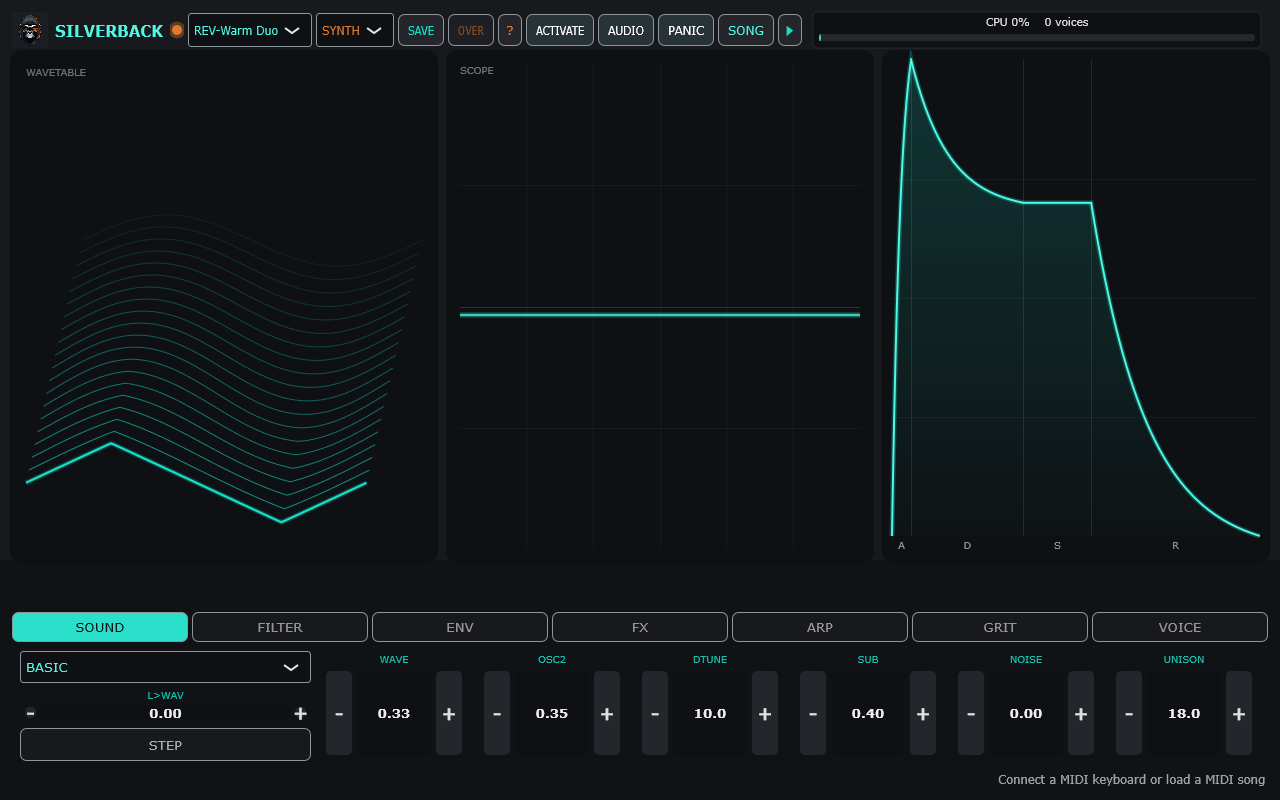
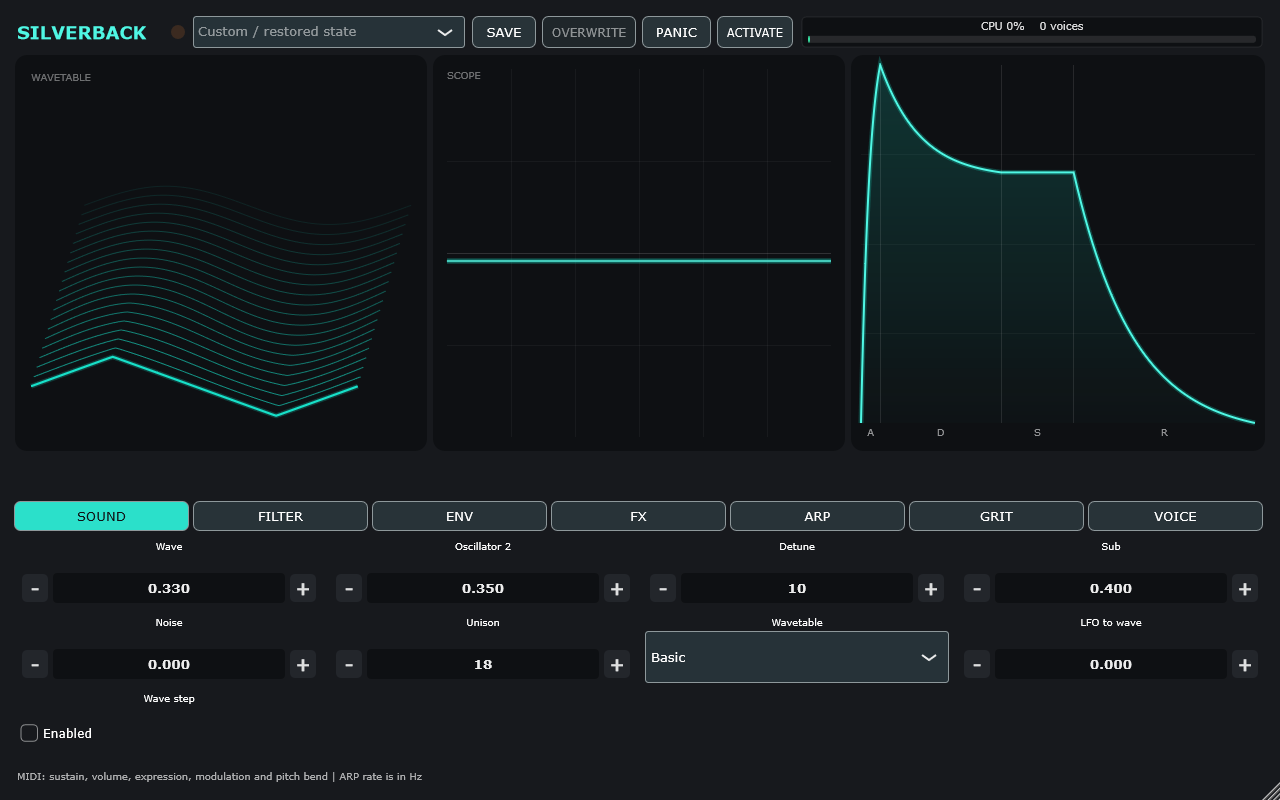
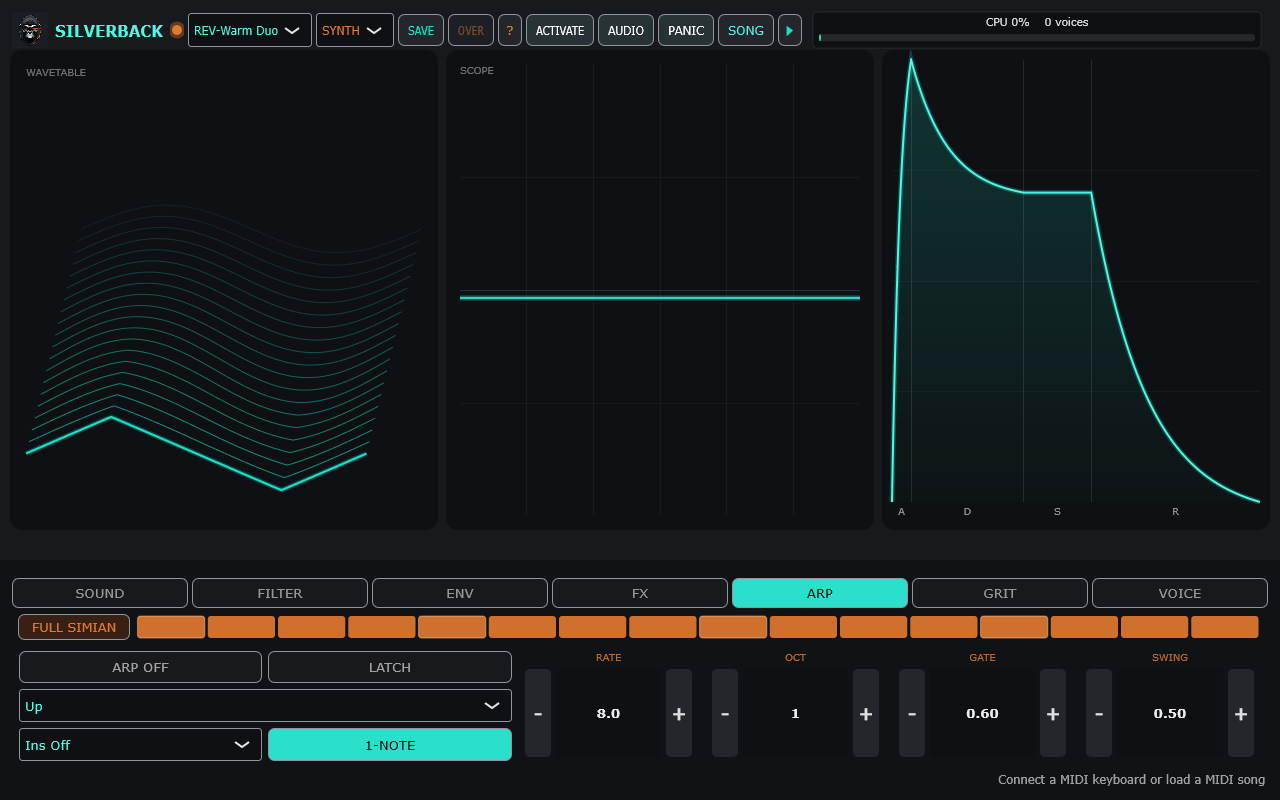
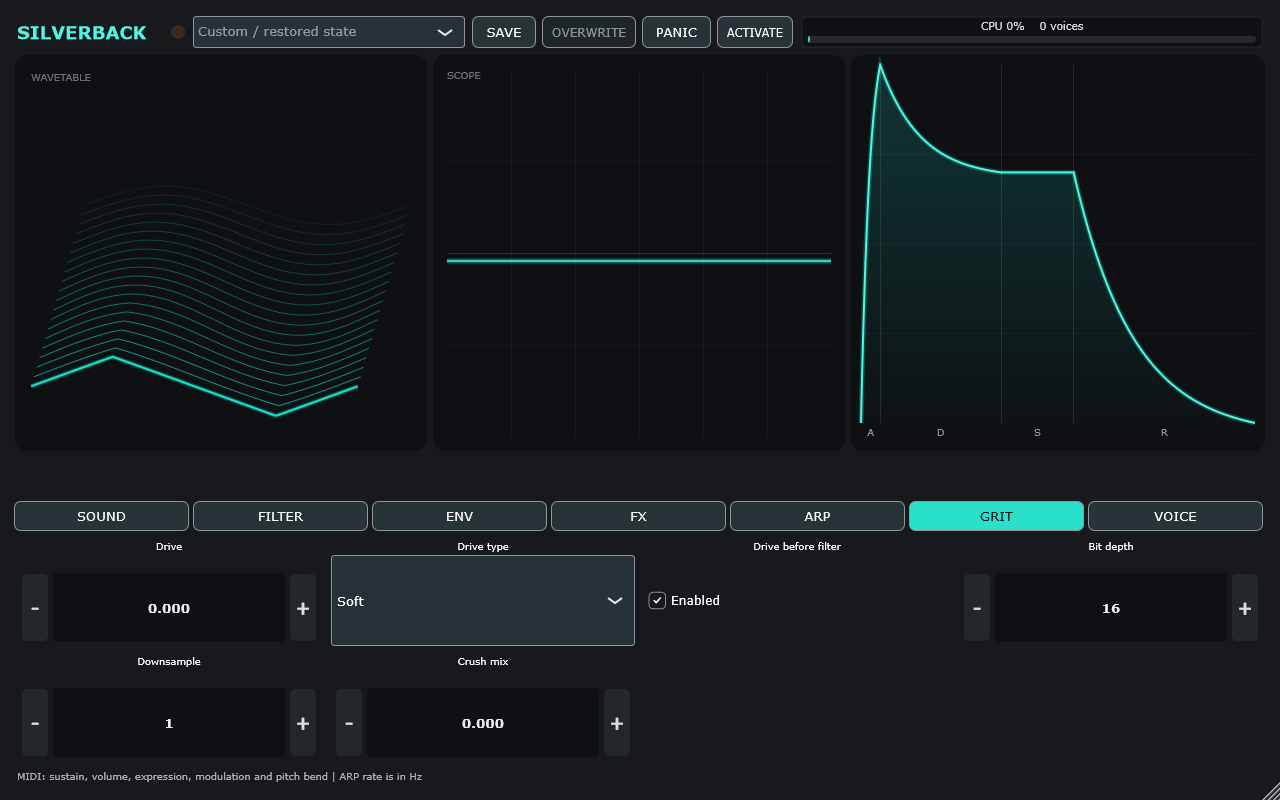
These images show the actual Windows standalone and VST3 interfaces. Open an image to inspect the controls at full size.
Everything through this store
Purchase, download, and keep your serial.
- Open the Silverback standalone + VST3 product page and purchase the $19.99 bundle through this site’s checkout.
- After payment is confirmed, use the download links supplied with your order or visit My account > Downloads using the account associated with your purchase.
- Download the Windows Standalone ZIP, the Windows VST3 ZIP, or both. Each archive includes its sound bank, installation guide, changelog, third-party notices, release manifest, and SHA-256 checksums. The standalone also includes two demo MIDI songs.
- Find your serial with your completed order or under My account > License keys. Open My Account to manage your purchase. Both formats use the same serial; downloading again does not create a new license.
The software archives are delivered by WordPress/WooCommerce after your purchase is authorized. Screenshots and this guide are public product information; they are not unlocked software downloads.
Getting started
Install and play your first note.
Windows standalone
- Download the standalone ZIP through your WooCommerce order or account. Extract the entire archive to a writable folder.
- Keep
GeneralUser-GS.sf2besideSilverback.exein the extractedStandalonefolder. Keep the included resources and songs together. - Run
Standalone/Silverback.exe, activate it using the instructions below, then choose AUDIO to select an output device and buffer size. - Connect your MIDI keyboard and play. To play a file instead, choose SONG, browse to a
.midor.midifile, and press Play. Two demo MIDI files are included underStandalone/songs. - Begin at a low listening level. Raise the volume gradually after confirming the output device and selected preset.
VST3 instrument
- Download and extract the VST3 ZIP. Copy the whole
VST3/Silverback.vst3folder, includingContents/Resources, into a VST3 directory used by your DAW. - The standard system folder is
C:\Program Files\Common Files\VST3; writing there requires administrator rights. Keep the complete bundle intact. - Rescan plugins in your DAW, create an instrument track, insert Silverback, and route MIDI to that track. Enable track monitoring as required by your host.
- Activate from the plugin if you have not already activated the standalone on this computer. The DAW controls the audio device; Silverback’s standalone AUDIO settings do not configure the plugin.
- Save the DAW session to retain the complete plugin patch. Use host automation for the 50 exposed parameters.
Visual Studio is not required: the Windows release includes a static Microsoft C++ runtime. The Windows binaries are unsigned, so Windows may show a publisher warning. Use your authorized store download and verify its integrity before running it.
Verify your download
The release archive SHA-256 values are:
- Standalone 0.3.0:
904decc22d0ab29e5199ca90263ffd969539c01643ec5d268a6c93ce0c3e1d85 - VST3 0.3.0:
2b51838ba15a5cda3eebdffedf24ca01f712686febc0af5d367feb433a7bc889
In PowerShell, run Get-FileHash -Algorithm SHA256 "path-to-your-downloaded.zip" and compare the result with the matching value above. The extracted archive also contains SHA256SUMS.txt for its individual files.
One computer · Perpetual
Activate once. Keep playing offline.
- Obtain your Silverback serial from your completed order or My account > License keys.
- Connect this computer to the internet. Click ACTIVATE inside Silverback, paste the serial, and activate. Use the app or plugin activation panel; the website’s generic activation button cannot identify your computer.
- After activation succeeds, both formats can run offline indefinitely on that computer. Activating either format writes the shared certificate; the other format finds it automatically.
The certificate is saved at %APPDATA%\Silverback\activation-v1.json. Keep it when reinstalling on the same computer. It contains a signed entitlement bound to a hashed computer identifier; it does not contain the original serial.
During activation, the serial and hashed computer identifier are sent over HTTPS to this site. Silverback verifies the saved certificate locally. There is no periodic internet check or expiry, and normal offline use sends nothing.
Replacing hardware? One license is bound to one computer. Contact store support before replacing hardware or transferring to another computer. Deactivating on the website does not revoke an existing offline certificate or authorize a second computer. Future major-version upgrades are not promised by this purchase.
User guide
Choose an engine. Build your patch.
Synth, GS Real, or GS Dirty
| Engine | What it does | Controls to use |
|---|---|---|
| Synth | 12-voice wavetable synthesis with six wavetable banks. | Oscillators, sub, noise, unison, filters, envelopes, effects, arpeggiator, and voice controls. |
| GS Real | Sampled General MIDI instruments and channel 10 drums from the included GeneralUser GS bank. | Volume, supported MIDI controllers, program changes, and pitch bend. Synth oscillator, filter, envelope, and FX controls do not shape sampled voices. |
| GS Dirty | The sampled instruments with drive and bitcrush for a rougher sound. | Sampled-instrument controls, plus drive and bitcrush. |
The included bank is GeneralUser GS 2.0.3 BETA. Its attribution is included in notices/GeneralUser-GS.txt within each download.
Navigate the seven control tabs
| Tab | Use it for |
|---|---|
| Sound | Choose wavetable and oscillator settings; blend the second oscillator, sub, noise, and unison. |
| Filter | Choose a filter mode and adjust cutoff, resonance, and filter envelope influence. |
| Env | Set amplitude and filter envelopes; add pitch and wavetable movement. |
| FX | Adjust chorus, delay, and reverb. |
| Arp | Control the note pattern, rate, octave range, gate, latch, swing, and traversal. |
| Grit | Shape drive and bitcrush. Reduce the output level when exploring aggressive settings. |
| Voice | Choose Poly, Mono, or Legato; set glide, volume, pitch bend range, and velocity response. |
Start with a factory preset. For a simple edit, select Synth, change a Sound or Filter control while playing, then adjust Env and FX. Save a user preset when you find a patch you want to keep. In a GS engine, begin with MIDI program selection and volume instead of the synth-only controls.
Arpeggiator behavior
Hold a chord to create an arpeggio. Choose a traversal mode, set the rate in Hz, adjust gate and octave range, and use the 16-step on/rest pattern to introduce gaps. Latch retains a pattern when you release keys; swing changes its rhythmic feel.
With Single repeat disabled, one held note passes through continuously. Channel 10 bypasses the arpeggiator, keeping drum parts separate. Generated arpeggiator notes use MIDI channel 1. These controls are saved with your patch, but the rate remains independent of the DAW’s tempo.
Playing feel and exploration
Choose Poly for chords, Mono for a single-note line, or Legato for connected playing. Glide and pitch bend range change how notes move. Linear velocity is the default; Soft boosts quiet playing, while Casio retains the older fixed-floor response.
The standalone adds Random, Mutate, Chaos, APE SHIT, and FULL SIMIAN exploration controls. Save a patch before experimenting if you want to keep it. FULL SIMIAN randomizes arpeggiator settings.
PANIC immediately stops voices, drums, arpeggiation, and effect tails. Stop song playback separately if you do not want the song to trigger new notes.
Keyboard & song playback
MIDI routing and controllers.
Melodic voices track note ownership by MIDI channel. The standalone discovers connected MIDI devices and plays Standard MIDI Files with their tempo map, controllers, program changes, and note timestamps. Song loops include the full duration of the file, including silent tails.
- CC64: sustain.
- CC7: channel volume.
- CC11: expression.
- CC1: synth filter modulation.
- Pitch wheel: uses the selected bend range.
- Program changes: select GM instruments.
- MIDI channel 10: drum playback in the sampled engines.
GeneralUser playback uses the controllers implemented by TinySoundFont. SoundFont modulator support is limited; CC1 does not add sampled-instrument vibrato. All Notes Off and All Sound Off clear the global instrument. SysEx is unsupported.
Optional Preset keys reserves MIDI notes 21 and 22 for preset navigation. It is disabled by default so those notes play normally. Navigation takes place on the UI timer.
Keep your sounds
Presets, sessions, and backups.
Both formats share %APPDATA%\Silverback\user_presets.txt. Despite its historical filename, the current file stores versioned JSON with named parameters. SAVE creates a user preset; OVERWRITE replaces the selected user preset. Factory presets cannot be overwritten.
Different instances merge saves into the latest library. If two instances overwrite the same user preset, the last successful save wins. A DAW session stores the complete plugin patch independently of the shared preset library.
Upgrading from an older library
Existing 18- and 28-value libraries remain readable. The first successful save creates user_presets.txt.legacy.bak before conversion. Back up the library and activation certificate before upgrades. Damaged libraries and unsupported newer schemas are preserved and reported rather than overwritten. Values discarded by an older 18-value build cannot be recovered from that file.
Where settings live
- Shared user presets:
%APPDATA%\Silverback\user_presets.txt - Offline activation:
%APPDATA%\Silverback\activation-v1.json - Standalone audio settings:
%APPDATA%\Silverback\audio-device.xml - VST3 patch: saved in your DAW session.
Keep the plugin sound bank inside Silverback.vst3/Contents/Resources. If the bank is missing, Silverback reports it and falls back to Synth.
Help when you need it
Troubleshooting.
No sound from the standalone or plugin
Verify activation first. In the standalone, check AUDIO output selection. In your DAW, check the MIDI input, instrument track routing, and monitoring. Check output volume and CC7/CC11, press PANIC, then trigger a fresh note. Remember that this version has no on-screen piano keyboard.
Clicks, dropouts, or high CPU use
Increase the audio buffer size in the standalone or DAW. Try a simpler preset or lower unison settings, especially on a lower-powered computer.
GS instruments are missing or Synth is selected instead
Re-extract the complete download. For the standalone, keep GeneralUser-GS.sf2 beside Silverback.exe. For the VST3, copy the whole Silverback.vst3 bundle, including Contents/Resources, then rescan the plugin if necessary.
Activation cannot connect or reports a different computer
Check your internet connection and paste the serial from your Silverback order. Activate inside the app or plugin. If you have replaced hardware, or the key is already bound elsewhere, contact support before attempting a transfer. Do not delete a working offline certificate as a first troubleshooting step.
A preset cannot be saved
Check permissions for your AppData folder, wait for another instance to finish saving, and retain the original file. Back up the library before repair or migration. Unsupported newer files and damaged libraries are deliberately preserved.
Notes return after pressing PANIC
PANIC clears the current sound and effect tails. A playing MIDI song can send new notes afterward; stop the song as well.
Where are my downloads and serial?
Sign in using the account associated with your purchase. Open My account > Downloads for the standalone and VST3 ZIPs, and My account > License keys for the shared serial. Check your completed-order details too. If payment or access needs investigation, contact support with your order number.
Need help? Contact store support with your Silverback version, standalone or VST3 format, Windows version, DAW if applicable, and steps to reproduce the problem. Keep your serial private; do not post it publicly.